
Sync Any Folder to OneDrive in Windows 10
In short, a directory junction is a classic type of symbolic link, which does not support UNC paths (network paths that begin with \\) and relative paths. Directory junctions are supported in Windows 2000 and later NT-based Windows systems. A directory symbolic link on the other hand also supports UNC and relative paths. For today’s task, directory junction is suitable.
To sync any folder to OneDrive in Windows 10, do the following.
- Open an elevated command prompt.
- Type the following command:
mklink /j "%UserProfile%\OneDrive\Folder name" "The full path to your folder". You need to substitute the ‘Folder name’ portion with the desired name which will reproduce your folder in the OneDrive storage. Also, provide the correct path to the destination folder that you want to sync. For example:mklink /j "%UserProfile%\OneDrive\Winaero-folder" "c:\data\winaero".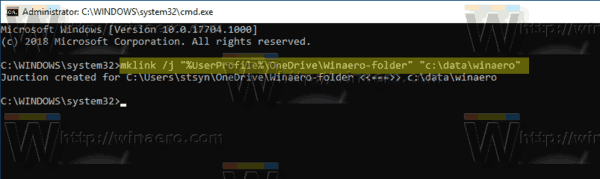
- The specified folder will now be synced with your OneDrive.
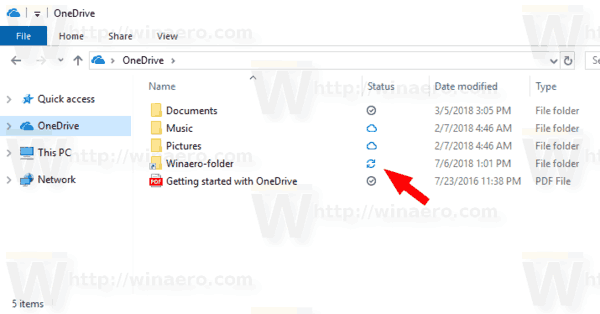
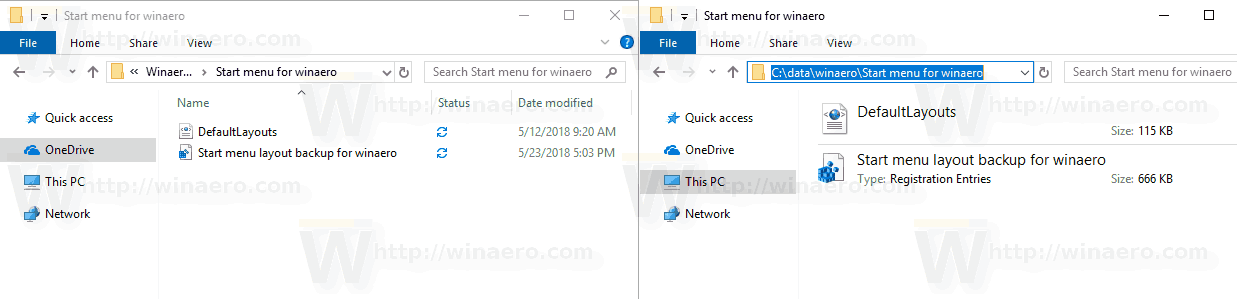
- To stop it from syncing, remove the ‘Folder name’ (e.g. ‘Winaero-folder’) from the OneDrive folder. This won’t remove your actual folder from your drive (e.g. ‘c:\data\winaero’).
See the following screenshot:
That’s it!
Source : https://winaero.com/sync-any-folder-onedrive-windows-10/